Watch in your language
Disney+ audio language missing: what to check, and what to do
Disney+ has two language settings that do different jobs. The app language changes its menus, while the audio and subtitles menu in the player offers only the languages one title has in your country. When your language is not in that menu, no setting adds it. Below, from Disney+'s own help pages read on 16 November 2026: where each setting is, why a title can lack your language, and the ways left to watch it anyway, from subtitles in a language you read to a voice-over in your own.

Two settings, two different jobs
The app language is the language of Disney+ itself: its menus, buttons and title pages. Disney+'s help gives the path as Profile icon, Edit Profiles, the profile, App Language, then your language and Done. It changes the website and the apps for that one profile.
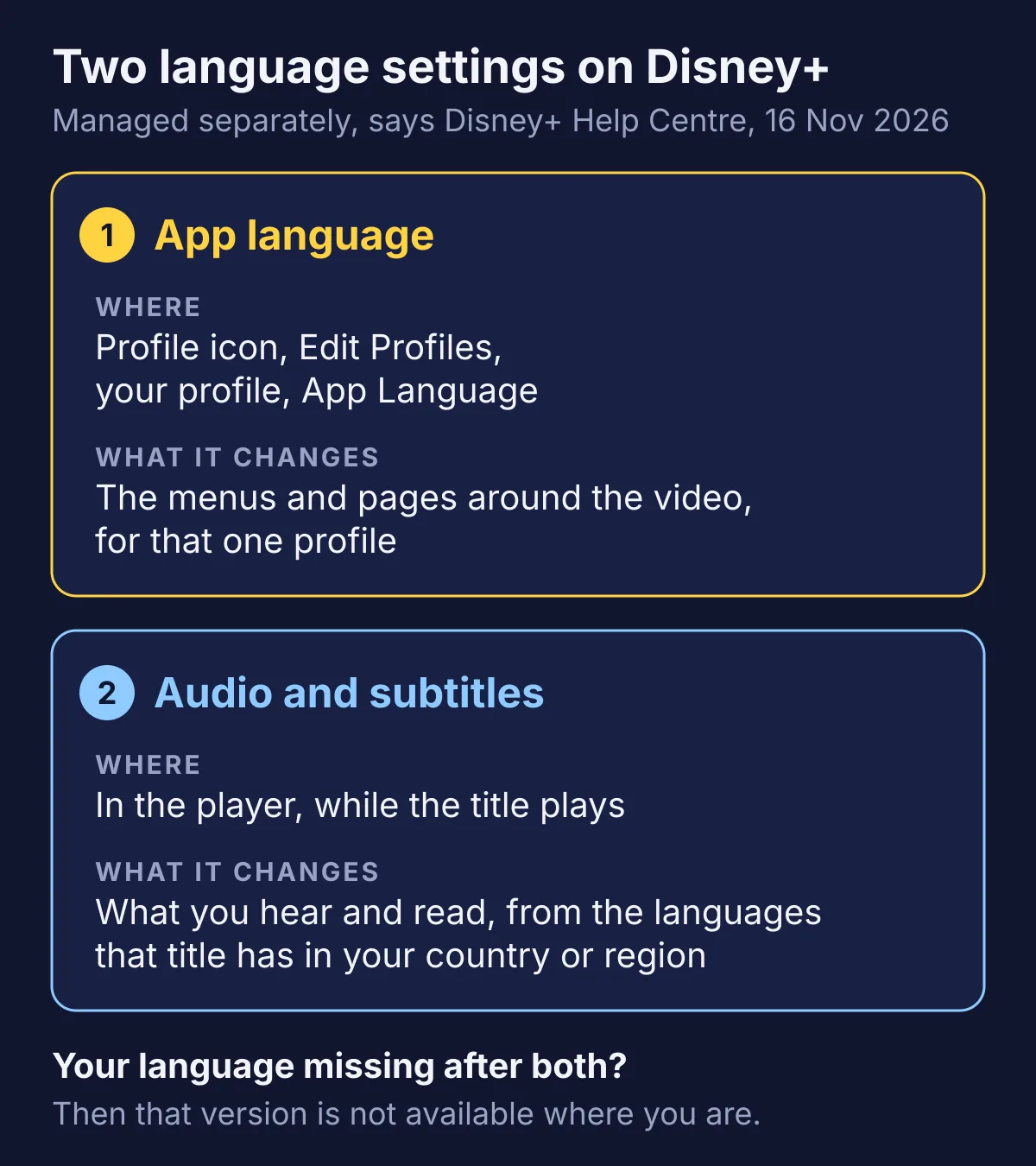
Audio and subtitles are chosen in the player, title by title, and Disney+'s help says they are managed separately from the app language. A profile set to Spanish can play a film in English, and one set to English can play it in Spanish, as long as the film has Spanish where you are.
The same help adds a tip: when your language is not in the player's menu, try changing the app language to get the version you need. That can only help where Disney+ offers your language for its app, and which app languages you can pick depends on where you are. Its list, read on 16 November 2026, runs from Arabic to Turkish and three forms of Chinese, and has no Lithuanian, Latvian, Estonian, Ukrainian, Bulgarian, Russian, Hindi or Vietnamese. For those languages the tip changes nothing.
Where the audio and subtitles menu is
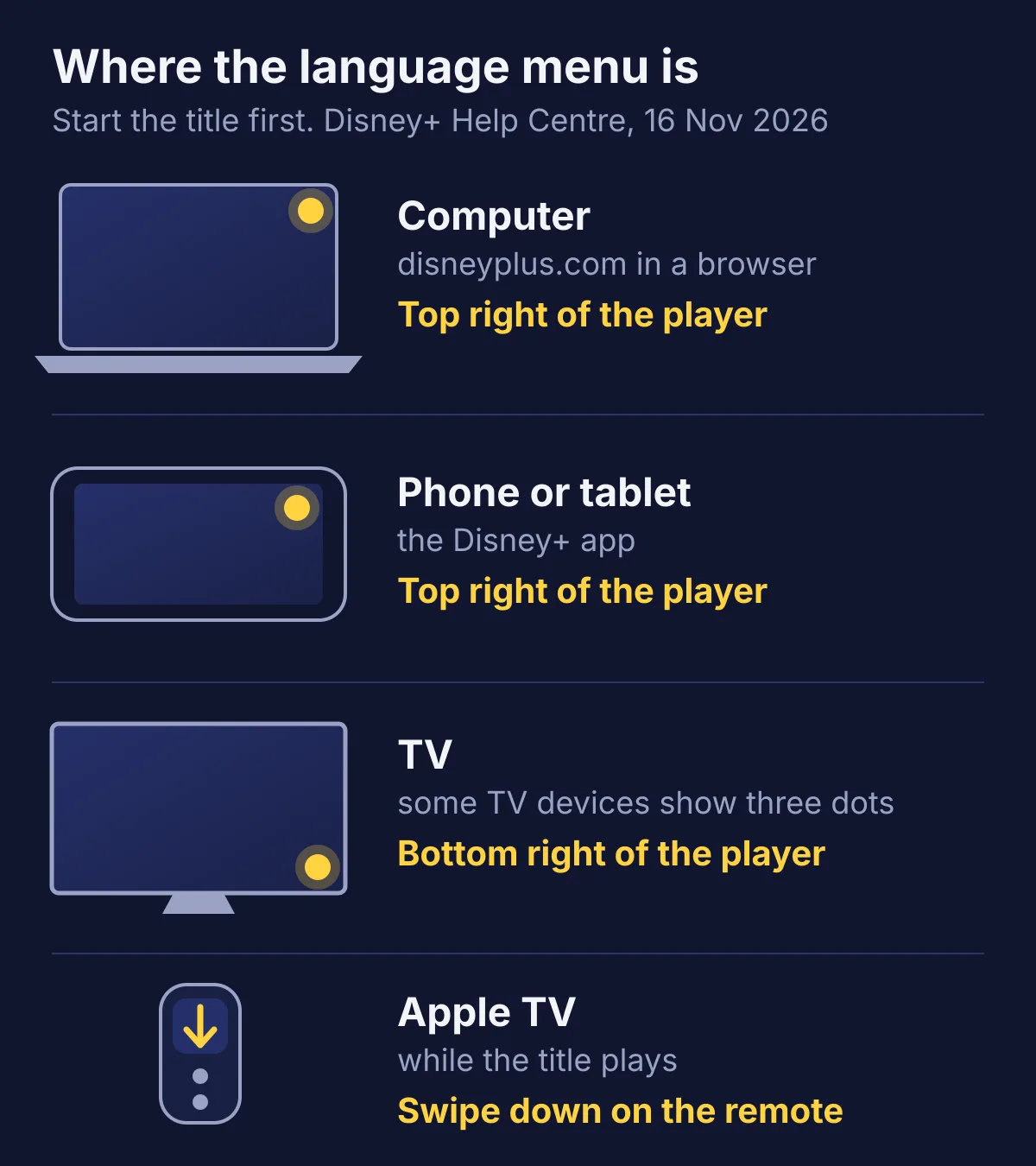
Start the title first: the menu is only in the player. Disney+'s help calls its button the keyboard icon, and where it sits depends on the device:
- On disneyplus.com in a browser, and in the app on a phone or tablet: the top right corner of the screen.
- On a TV: the bottom right corner. Some TV devices show a three-dot icon there instead.
- On Apple TV: swipe down on the remote while the title plays.
Choose the audio language and the subtitle language there. Closed captions are listed with the subtitles. Close the menu with the X or the back arrow, and the choice is saved for that profile. The next title starts in the same languages if it has them; if it does not, choose again.
Why a title lacks your language
Disney+'s help gives the same reason on several pages: the audio, captions and subtitles on offer vary by country or region and by title. So a film can have a language in one country and not in the next, and two titles in the same country can differ. A few things follow from its pages:
- Travel. Abroad, you get what Disney+ offers in the country you are in. If you live in the European Union, you keep your home country's Disney+ while in another EU country, Norway, Liechtenstein or Iceland.
- English captions. Disney+ aims to have English closed captions or subtitles for the deaf and hard of hearing on all titles, with some exceptions. Its help names no such aim for any other language.
- Audio description. The narration of what is on screen, for blind and partially sighted viewers, is an extra audio track, and it varies by title, language and country or region too.
If your language is still missing after the menu and the app language, Disney+'s help says that version may not be available in your country or region. You can ask for it through the feedback form at the bottom of its help pages, with no promise that it comes.
Ways to watch when your language is not there
Disney+ plays only the tracks a title comes with, and it has no button that translates them. What is left:
| Option | What you get | Where it works |
|---|---|---|
| Subtitles in a second language | Disney+'s own subtitles in a language you read well, often English | Every device |
| A subtitle translator extension | Disney+'s subtitles translated into your language, as text to read | A browser on a computer |
| A voice-over extension, such as Vocnu | The translation read aloud over the original sound, with subtitles | Chrome, Brave or Edge on a computer |
| Disney+'s feedback form | Your request reaches Disney+, which may add the language later or never | Disney+'s help pages |
Subtitles in any language are of no use to a child who cannot read yet. A voice-over is something a child can follow by ear while watching the picture.
Extensions run only in a browser on a computer, never in the Disney+ apps on a TV, phone or tablet. Disney+'s help lists the browsers it supports: Chrome, Firefox, Edge and Opera on Windows, Chrome, Firefox, Edge and Safari on a Mac, and Chrome on a Chromebook. Brave is not on that list. Vocnu runs in Chrome, Brave and Edge, so if Disney+ will not play in Brave, use Chrome or Edge.
Hearing Disney+ in your language with Vocnu
The Vocnu extension translates a video as it plays and has one AI voice read the translation over the original sound turned down, with subtitles in your language over the picture, in 38 languages. It works on Disney+ in Chrome, Brave and Edge on a computer. It has no mode made for Disney+: where it can read the subtitles the player loads, it translates those, and where it cannot, it hears the title from the tab's sound once you allow it with one click on its button.
- Add Vocnu to Chrome, Brave or Edge from the Chrome Web Store. In the app it opens, sign in or create a free account and press Connect the extension.
- Start the title on disneyplus.com, press the Vocnu button in the browser's toolbar or Alt+Shift+V, and choose your language.
- Press play. If Vocnu has to hear the video, it says so over the player and starts once you click its button.
This page has no test on Disney+ itself, so it gives no timings or notes on quality there. How to translate Netflix has a full test on a film: how long the first line took, what a pause and a jump did, and how the translation came out. On Netflix Vocnu read the film's subtitles, so the waits on Disney+ can differ. What holds on any site:
- One voice reads every character, children's characters too, over the original sound turned down. Nothing moves with the lips.
- Machine translation: a line can come out wrong, and names may be spelled by sound.
- Songs keep their own sound. Vocnu's menu has two switches for them: Song subtitles shows the lyrics in your language, and Voice songs has them read too.
- A title already in your language is never voiced or charged.
- A computer only: Vocnu does not run in Disney+'s apps on a TV, phone or tablet.
What a cartoon, an episode and a film cost
You pay for the minutes Vocnu voices, at the rate of the grade you choose. Premium has the most natural voices and the finest translation. Standard sounds plainer, and its translation slips now and then. Economy has a plain synthetic voice and a quicker translation that slips more often. Each price runs from the rate of the largest credit pack to that of the smallest:
| Grade | A 22-minute cartoon | A 45-minute episode | A 2-hour film |
|---|---|---|---|
| Premium | 44 credits, €2.90 to €4.40 | 90 credits, €5.94 to €9.00 | 240 credits, €16 to €24 |
| Standard | 22 credits, €1.45 to €2.20 | 45 credits, €2.97 to €4.50 | 120 credits, €7.92 to €12 |
| Economy | 11 credits, €0.73 to €1.10 | 23 credits, €1.52 to €2.30 | 60 credits, €3.96 to €6.00 |
A new account gets 40 free credits once it confirms its email: 20 minutes of Premium voice-over, 40 of Standard or 80 of Economy. That is a whole cartoon in Standard or a whole episode in Economy. Watching the same minutes again within 90 days, in the same language, voice and mode, costs nothing, which counts with a cartoon a child asks for again and again. Credit packs start at €5, and their credits do not expire.