Why screen readers skip them
A video can carry subtitles in two ways. A subtitle track travels as text beside the picture: you can switch it off, and a player can hand each line to a screen reader. Burned-in subtitles, also called hardcoded or open subtitles, are drawn into the frames themselves. The W3C's accessibility pages describe open captions as "always displayed and cannot be turned off", and the Bureau of Internet Accessibility puts the problem in one line: "If the text is part of an image, screen readers can't find anything to read."
That is the answer people get on forums for blind users when they ask which player will read the subtitles a video came with. It comes up with films too, when a scene in another language has nothing but translated subtitles on screen.
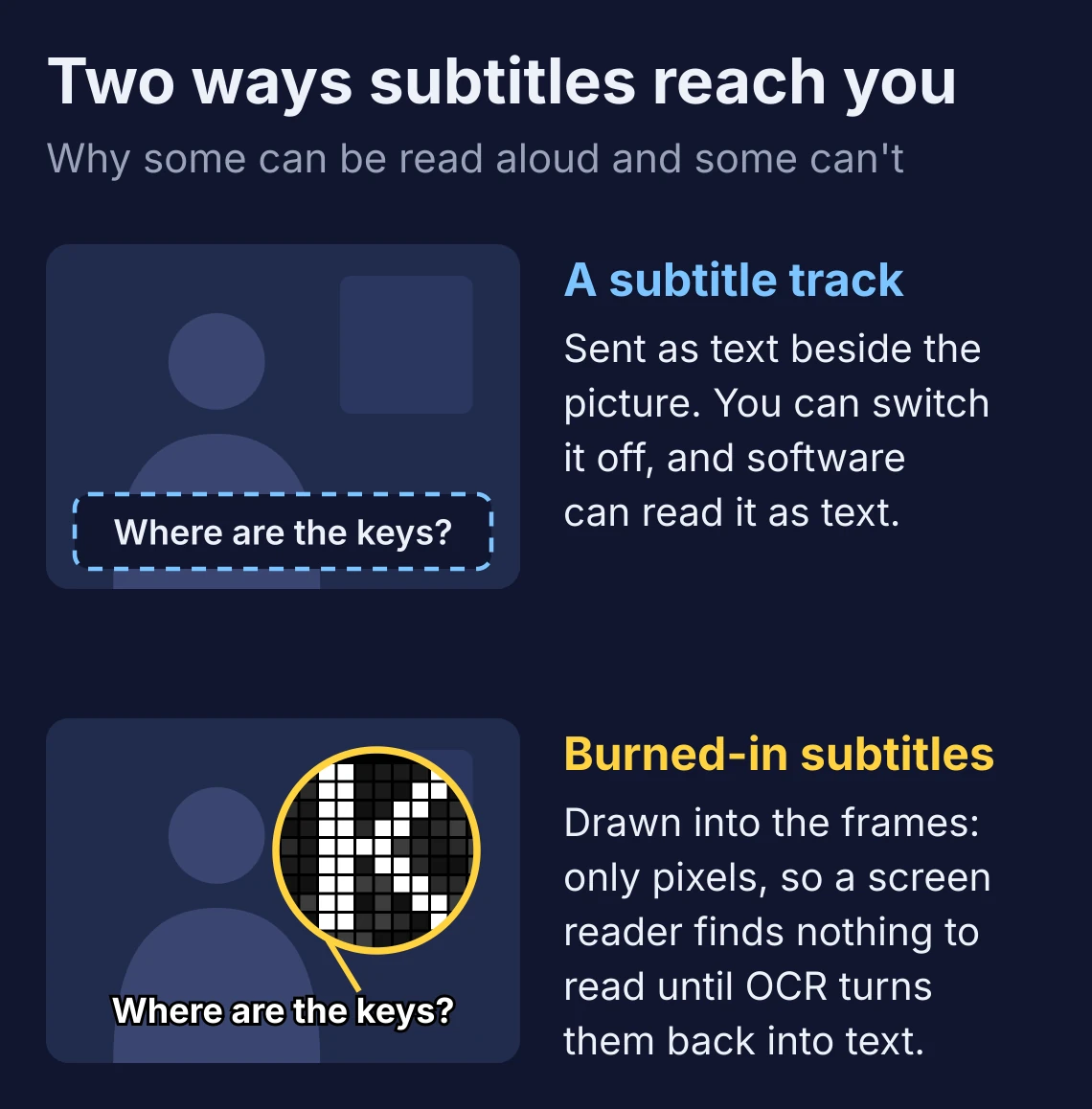
So every route below starts with OCR, optical character recognition: software that recognises letters in a picture. OCR can misread a word or a name, as our test further down shows, so none of these routes is sure to read every line right.
Which route fits
| Route | Runs on | Price | Best for |
|---|---|---|---|
| NVDA's text recognition | Windows 10 and later | Free | Reading a line or two, if you already use NVDA |
| A phone camera app: Seeing AI, Lookout or Envision | iPhone or Android, pointed at any screen | Seeing AI and Envision are free | A TV, where nothing else can reach the picture |
| Subtitle Edit, VideOCR or VideoSubFinder | Windows and Linux, Subtitle Edit on Macs too | Free | A video file, when every line has to be right: you can correct the text before it is read |
| Vocnu's Read the text on screen | Chrome, Brave and Edge on a computer | From €0.02 a minute | A video playing in the browser with no subtitle track, read in your language as it plays |
On Windows: NVDA's text recognition
NVDA, the free screen reader for Windows from NV Access, can recognise text with the OCR built into Windows 10 and later. With the video in focus, press NVDA+R: the text it found in the frame opens in a document you read with the arrow keys, and NVDA+F5 refreshes it.
Its user guide has a setting for text that keeps changing, "such as when watching a video with subtitles": Periodically refresh recognized content, in the Windows OCR category of NVDA's settings, which recognises the picture again every one and a half seconds. It is off by default. Next to it, Automatically say all on result reads out everything recognised once recognition is done, also off by default. The guide doesn't say how the two behave together on a playing video, and we did not try them.
On a Mac, VoiceOver can describe an image when you press VO-Shift-L, but Apple's guide says nothing about reading subtitles in a playing video, and we did not try it. There, the file and browser routes below are the surer bet.
On a TV: a phone pointed at the screen
Camera apps made for blind and low-vision people read whatever text the camera catches, burned-in subtitles included:
- Seeing AI, free from Microsoft, for iPhone and Android.
- Lookout, from Google for Android 6.0 and later: in its Text mode you point the camera at text to have it read.
- Envision, a free app for iPhone and Android that turns the text it sees into speech.
They read a channel logo or a sign in the scene as readily as a subtitle, and we did not test them on a TV. What reads subtitles out loud covers this trick and the tools for subtitles that come as text.
From a video file: pull the subtitles out first
When you have the video as a file, you can turn its burned-in subtitles into a subtitle file once, correct what OCR got wrong, and have them read every time. These three are free:
- Subtitle Edit for Windows, Linux and macOS. Video, then OCR burned-in subtitle, scans the bottom third of the picture by default. Video, then Play with speech, plays the video and speaks each line when the video reaches it, and can turn the video's own sound down while a line is spoken. Video, then Text to speech, adds the speech to a copy of the video instead, with engines such as Piper (not on macOS), Edge TTS or the paid ElevenLabs. That replaces the original sound unless you turn on ducking under Advanced.
- VideOCR for Windows and Linux. You draw a box around the subtitles and it writes an SRT subtitle file, reading them with PaddleOCR on your own computer or with Google Lens. Its page warns that PaddleOCR can be slow without a graphics card.
- VideoSubFinder for Windows and Linux. It finds the frames that carry subtitles and their times, and leaves the reading to an OCR program. Its latest version, 6.10, is from May 2023.
We did not run these. They ask for more setup than the other routes, and a long video takes a while to process, but they are the free way to get every line right, since you fix the text before anything is spoken.
In the browser: Vocnu's Read the text on screen
Vocnu is ours: an extension for Chrome, Brave and Edge on a computer that translates a video into one of 38 languages and reads it aloud in one voice over the original sound, which it turns down, with subtitles over the player. It works from a video's subtitle track when there is one and from its sound when there is none. While it voices the sound, its window offers a Read the text on screen switch: "For subtitles burned into the picture: Vocnu voices them instead of what it hears." Vocnu then reads the subtitles in the language you chose, as written when they are already in it and translated when they are not. We tried only the first.
- Add Vocnu from the Chrome Web Store. Brave and Edge install it from there too.
- Sign in or create a free account in the Vocnu app the extension opens, and press Connect the extension.
- Open the video, press the Vocnu button in the browser's toolbar or Alt+Shift+V, choose your language, a voice quality (Standard or Premium) and a voice, and turn Vocnu on.
- Once Vocnu has started, open its window again. When Read the text on screen appears, turn it on.
The switch appears only while Vocnu voices a video from its sound: a video file opened in the browser, say, or a player on a site with no subtitle track. When a video has a track, YouTube's automatic captions included, Vocnu translates that track instead and doesn't offer the switch. Live streams don't get the switch either. Vocnu voices those from their sound, a few seconds behind the picture: how to translate computer audio in real time covers that.
Our test: a Dutch interview with English subtitles in the picture
We used "VIDI grant: Rianne Letschert with English subtitles", a three-and-a-half-minute Tilburg University video on Wikimedia Commons under CC BY 3.0, in which a professor talks about her research in Dutch with English subtitles burned in. On 18 November 2026 we opened the video file in Chrome with Vocnu 0.5.104, the version the Chrome Web Store offered that day, set to English and Standard, turned the switch on as soon as it appeared and played the video through. Then we checked what Vocnu read against the video's 48 subtitles.
- The switch appeared about half a minute after we turned Vocnu on. By then the video had played its first seven seconds and stopped to wait while Vocnu got the voice-over ready from the sound.
- Once we turned the switch on, the video waited another half minute, with Vocnu's progress on the player standing at 64 percent for most of it. Then it played eight seconds with no voice, stopped again, and went on with the first line read from the picture 46 seconds after we turned the switch on. Vocnu's window gave no time, only that the video was waiting or that the voice-over was being prepared.
- The voice started with the fourth subtitle and from there read every one to the end of the video. The three before it went by unvoiced: two while Vocnu was getting ready, one in those eight silent seconds.
- Checked against all 48 subtitles, the text Vocnu read off the picture got 46 right, a few with a word off, such as "especially in regions. When going to where there is unrest" for "especially in regions I'm going to where there is unrest". The other two, the first subtitle cut short and the second missing, were among the three that went by unvoiced.
- It voiced nothing but subtitles. Two other texts appeared at the top of the player without being read aloud: "Search Site" from a web page shown in the video and, when we went back to the start, the title card's "Rianne Letschert" misread as "Kianne Letscnert".
- Vocnu turned the Dutch voice down to 30 percent and showed its own line over the player, right on top of the burned-in subtitle.
- Pausing, playing on and skipping ahead a minute brought no new wait.
- After a page reload Vocnu voiced the sound again, with the switch off.
- The run cost us nothing. Our earlier plays of the same video had already paid for its minutes, and watching the same minutes again within 90 days, in the same language, voice and mode, is free.
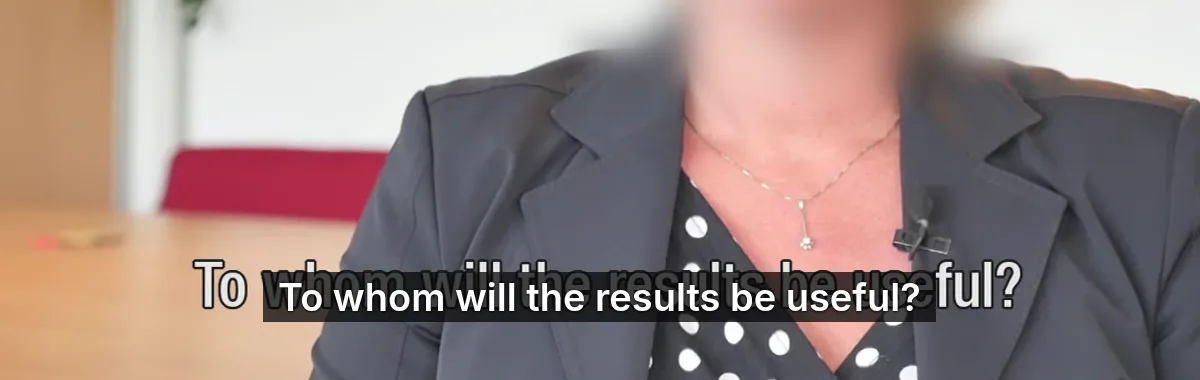
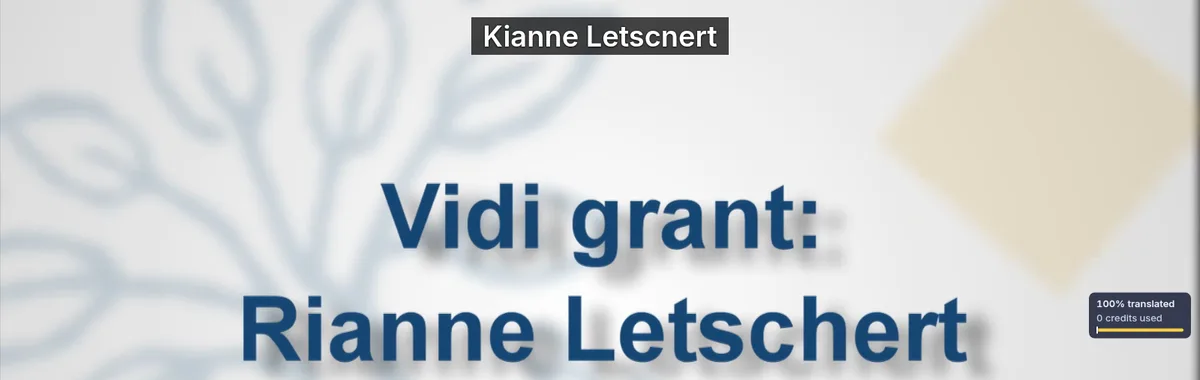
That was enough to follow the whole talk. It was also an easy case: plain white subtitles in a clear font, already in the language we chose. For a film where every line counts, a file you correct first with Subtitle Edit is still the safer route.
What the switch costs
Reading the picture uses your hours like any minute Vocnu voices, rounded up per video, in the voice quality you pick: a minute costs €0.02 to €0.04 in Standard and €0.08 to €0.17 in Premium, depending on the plan or pack. In Standard a video as long as ours costs €0.08 to €0.17, a 45-minute episode €0.91 to €1.92 and a 2-hour film €2.38 to €5.00.
A new account gets 2 h 40 min of Standard subtitles free once it confirms its email, or 1 h 20 min of Standard voice-over, no card needed. Plans start at €10 a month and packs of hours at €10, and a pack's hours never expire. NVDA, Subtitle Edit, VideOCR, Seeing AI and Envision cost nothing.
Where Vocnu's switch falls short
- OCR still misreads now and then: in our run a name on the title card and a word here and there. A misread can sound like a real sentence, so you can't always tell.
- Other text in the picture shows up at the top of the player, misread at times. In our run Vocnu voiced only the subtitles.
- The first line read from the picture came about 45 seconds after we turned the switch on, and the subtitles shown before it weren't voiced. Vocnu's window gives no time, and the progress on the player can stand still for a while.
- Vocnu's own line sits on top of the burned-in one. Turning off Dialogue subtitles in Vocnu's window hides Vocnu's lines.
- A page reload turns the switch off.
- We tried one interview with clear subtitles in the language we chose, not stylised fonts, busy pictures or subtitles that need translating.
- It appears only while Vocnu voices a video from its sound: not for videos with a subtitle track, not on live streams.
- Vocnu runs in Chrome, Brave and Edge on a computer, not on TVs, phones or tablets.
- We have not tested Vocnu's window with a screen reader, so someone sighted may need to help with the setup.
Questions and answers
Not as subtitles, since they are part of the picture. NVDA on Windows can read them with its text recognition, NVDA+R, and can recognise the picture again every one and a half seconds while a video plays.
Yes, with OCR tools such as Subtitle Edit, VideOCR or VideoSubFinder. They need the video as a file, and you can correct the text before it is read aloud.
Only when it voices the video from its sound. When the video has captions, YouTube's automatic ones included, Vocnu translates those instead and the Read the text on screen switch doesn't appear.
In our run on 18 November 2026 with Vocnu 0.5.104, on an interview with English subtitles burned in, it got 46 of the 48 subtitles right, a few with a word off, and voiced every one from the fourth on. It misread a name on the title card, which it showed at the top of the player without reading it aloud.
We have not tested Vocnu's window with a screen reader, so have someone sighted help with the first setup.
Sources
- W3C WAI: Captions/Subtitlesw3.org (opens in a new tab)
- Bureau of Internet Accessibility: How do burned-in captions affect accessibility?boia.org (opens in a new tab)
- NVDA User Guide: Content Recognition and Windows OCRdownload.nvaccess.org (opens in a new tab)
- NV Access: About NVDAnvaccess.org (opens in a new tab)
- Apple VoiceOver User Guide: VoiceOver Recognition categorysupport.apple.com (opens in a new tab)
- Seeing AIseeingai.com (opens in a new tab)
- Android Accessibility Help: Lookoutsupport.google.com (opens in a new tab)
- Envision appletsenvision.com (opens in a new tab)
- Subtitle Edit: OCR burned-in subtitlessubtitleedit.github.io (opens in a new tab)
- Subtitle Edit: Text to speechsubtitleedit.github.io (opens in a new tab)
- Subtitle Edit: Overviewsubtitleedit.github.io (opens in a new tab)
- VideOCR on GitHubgithub.com (opens in a new tab)
- VideoSubFinder on SourceForgesourceforge.net (opens in a new tab)
- Wikimedia Commons: VIDI grant: Rianne Letschert with English subtitles (CC BY 3.0)commons.wikimedia.org (opens in a new tab)
Found something out of date? Write to support@vocnu.com and we will check it and correct the page.